How to Track AI Traffic in Google Analytics 4 (ChatGPT, Claude, Gemini & More)
AI tools like ChatGPT, Claude, and Gemini are sending traffic to your website right now. But if you're looking at Google Analytics 4, you probably can't see it.
GA4 lumps all AI traffic into generic "referral" reports, buried alongside every other external link. You have no idea how many visitors come from AI platforms, which pages they land on, or whether they convert better than other channels.
That's a problem. AI traffic is up 527% in the past year. Clients are asking questions. Marketing teams need to prove ROI. And if you can't measure AI visibility, you can't optimize for it.
Here's the good news: you don't need new tracking code or third-party tools to fix this. Everything you need is already inside GA4.
In this guide, you'll learn:
Three proven methods to track AI traffic in GA4 (from 5-minute quick fixes to enterprise-level setups)
Ready-to-use regex patterns for ChatGPT, Claude, Gemini, Perplexity, Microsoft Copilot, and more
How to build reports your team can actually use to make decisions
Whether you're preparing monthly reports, optimizing content strategy, or building executive dashboards, this guide will help you turn invisible AI traffic into actionable data.
Let's get started.
Understanding AI traffic in GA4
Before you start tracking AI traffic, it helps to understand how it currently appears in your reports – and why it's so easy to miss.
How AI traffic appears by default
When someone clicks from ChatGPT or Claude to your website, GA4 automatically categorizes that visit as referral traffic. The source shows up as the AI platform's domain (like chatgpt.com or claude.ai), and the medium is tagged as "referral."
Technically, that's correct. But it creates a visibility problem.
Your AI traffic gets mixed in with every other referral source – backlinks, partner sites, random blogs, everything. When you open the Traffic Acquisition report and look at the Referral channel, you're seeing dozens or hundreds of sources lumped together. AI traffic becomes invisible in the noise.
AI platforms you should track
Not all AI traffic comes from the same place. Different platforms serve different audiences and use cases, which means they send different types of visitors to your site.
ChatGPT
Claude
Gemini
Perplexity
DeepSeek
Grok
Microsoft Copilot
What AI traffic data reveals
Once you can actually see your AI traffic separately, you unlock insights that weren't possible before:
Which AI platforms send the most visitors
What pages attract AI users (and why)
How AI traffic engagement compares to search or social
Whether AI visitors convert better than other channels
Where to focus your optimization efforts
One important note:This tracking method only captures clicks with referrer data. Not all AI exposure results in trackable traffic. Some AI platforms summarize content without linking, and some strip referrer information. What you see in GA4 is a partial view – but it's still worth organizing for clearer, more actionable insights.
The regex pattern you need
To track AI traffic in GA4, you need a regular expression (regex) that identifies all the AI platform domains sending visitors to your site. Think of it as a filter that tells GA4: "When you see traffic from any of these sources, flag it as AI."
We've built two versions for you – one short, one comprehensive.
Full regular expression (for channel groups)
Use this version when setting up custom channel groups. There's no character limit, so it includes every major AI platform:
(chatgpt|openai|anthropic|deepseek|grok)\.com|(gemini|bard)\.google\.com|(perplexity|claude)\.ai|(copilot\.microsoft|edgeservices\.bing)\.com|edge\scopilotWhen to use:Custom channel groups (Method 3) or custom reports where you have room
Short regular expression (for quick filters)
If you're adding a filter directly to a report, GA4 limits you to 250 characters. This shortened version covers the most common AI platforms:
(chatgpt|openai|anthropic)\.com|(gemini|bard)\.google\.com|(perplexity|claude)\.ai|copilot\.microsoft\.comWhen to use:Quick filters (Method 1) or anywhere with character restrictions
Keeping your regex updated
The AI landscape changes fast. New platforms launch. Existing tools add new domains. Your regex needs occasional maintenance to stay accurate.
How to maintain it:
Review your referral traffic quarterly for new AI domains
Add new platforms as they emerge using this format: |newplatform\.com
Update the pattern in all places you've used it (channel groups, filters, reports)
Document changes so your team knows what's being tracked
Choose your method
There are three ways to track AI traffic in GA4. Each takes a different amount of time and gives you different levels of insight. The right choice depends on what you need and how often you'll use the data.
Decision framework
If you need... | Use this method | Time | Permanence |
|---|---|---|---|
Quick one-time check | Method 1: Filter | 5 min | Temporary |
Dedicated AI report for your team | Method 2: Custom report ⭐ | 15 min | Permanent |
Channel-level analysis | Method 3: Channel group | 20 min | Permanent |
Our recommendation:Start with Method 2 (custom report). It gives you a permanent, shareable report without the complexity of channel groups. Then upgrade to Method 3 when you need to compare AI traffic alongside Organic Search, Paid, and Social in the same view.
Method 1 is useful for testing or quick checks, but the filter resets every time you leave the report. If you plan to monitor AI traffic regularly, skip straight to Method 2.
What each method gives you
Method | What you get | Permissions needed |
|---|---|---|
Method 1 (Quick filter) | See AI traffic immediately, but filter resets when you leave | None |
Method 2 (Custom report) | Permanent report visible to your whole team, shows all AI platforms in one place | Editor |
Method 3 (Channel group) | AI appears alongside other channels in all reports, compare AI vs. Organic vs. Paid side-by-side | Admin |
Ready to build? Let's start with Method 1.
Method 1: Quick filter
This is the fastest way to see AI traffic in GA4. No setup required, no special permissions needed. Just apply a filter to any report and you'll see results immediately.
The trade-off? The filter disappears as soon as you leave the report or refresh the page. Use this method when you need a quick answer or want to test before committing to a permanent setup.
When to use this method
You need an immediate answer about AI traffic
You're doing one-time analysis
You don't have Editor or Admin permissions
You want to test the regex pattern before building permanent reports
Option A: Filter in a standard report
Step 1:Navigate to Reports→ Acquisition→ Traffic acquisition
Step 2:Click the dimension dropdown above the table and select Session source/medium(or just Session source)
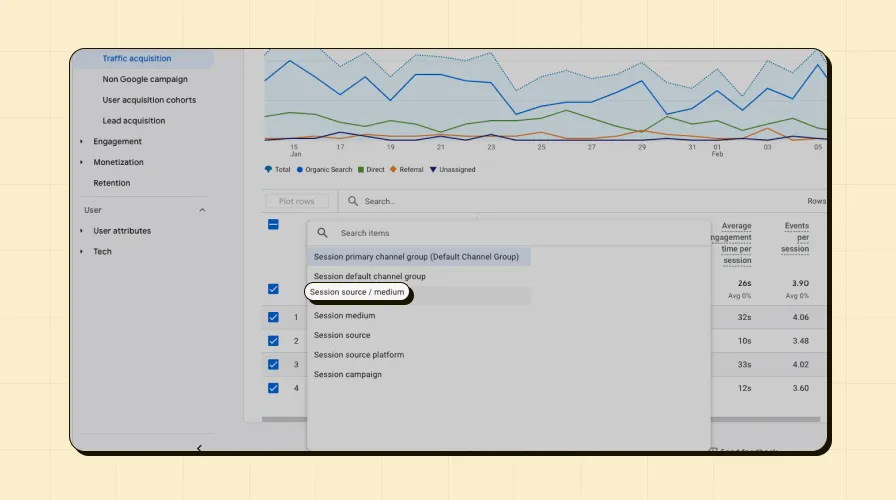
Step 3:Click the 'Add filter' above the line graph.
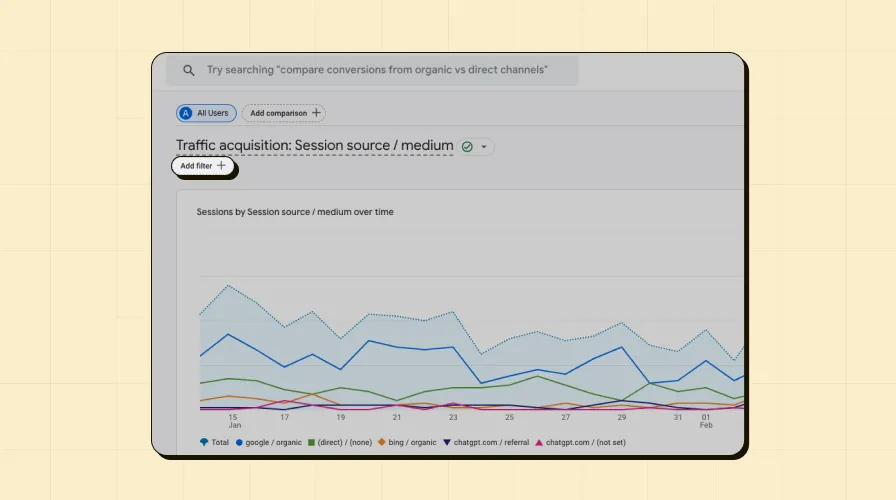
Step 4:Search for Session sourcefrom the dimension dropdown
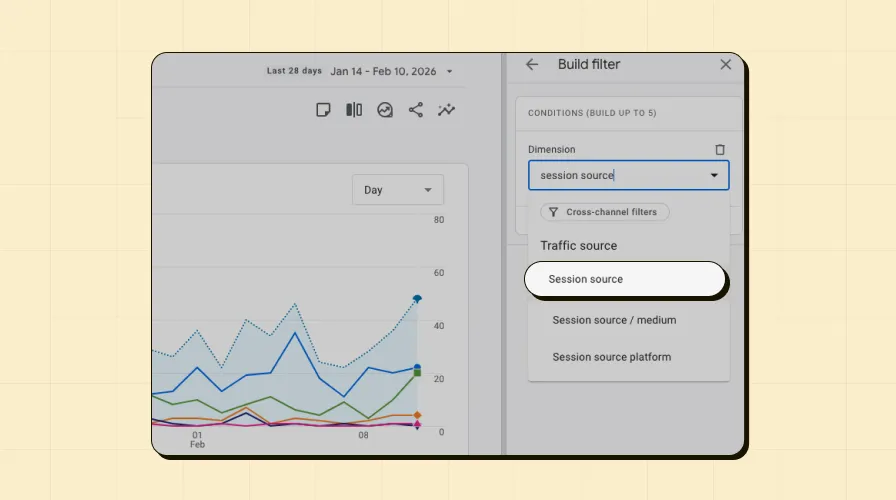
Step 5:Set match type to matches regex
Step 6:Paste the short regex pattern:
(chatgpt|openai|anthropic)\.com|(gemini|bard)\.google\.com|(perplexity|claude)\.ai|copilot\.microsoft\.comStep 7:Click Apply
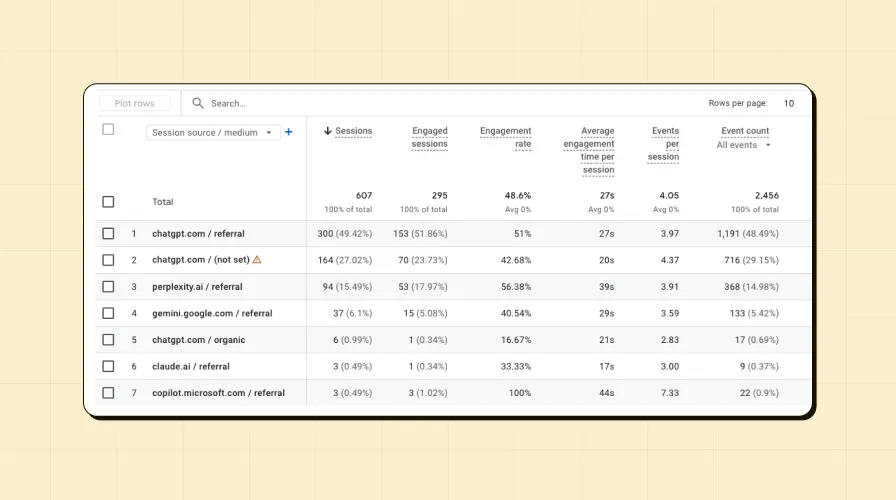
You'll now see only AI traffic in the report. The table shows which AI platforms are sending visitors, along with sessions, engagement rate, and other standard metrics.
Option B: Filter in an exploration
Explorations give you more flexibility to customize dimensions and metrics.
Step 1:Navigate to Explore→ Click Blankto create a new exploration
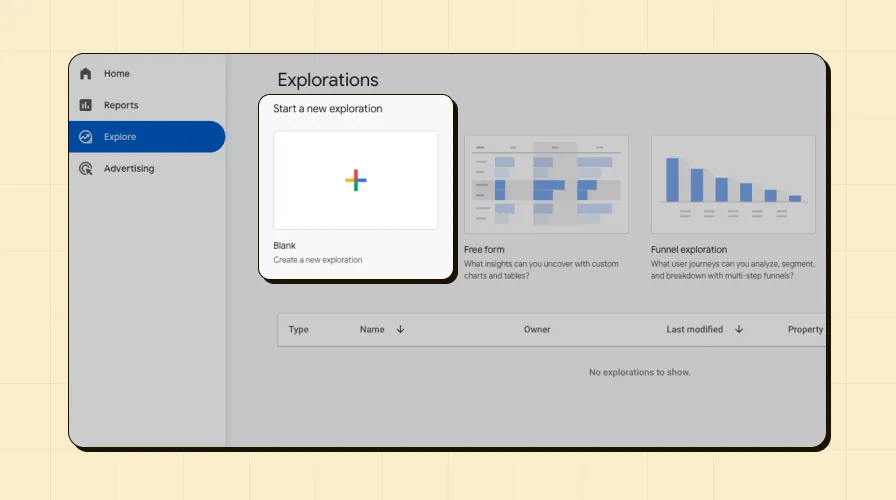
Step 2:Name your exploration "AI Traffic Quick Check"
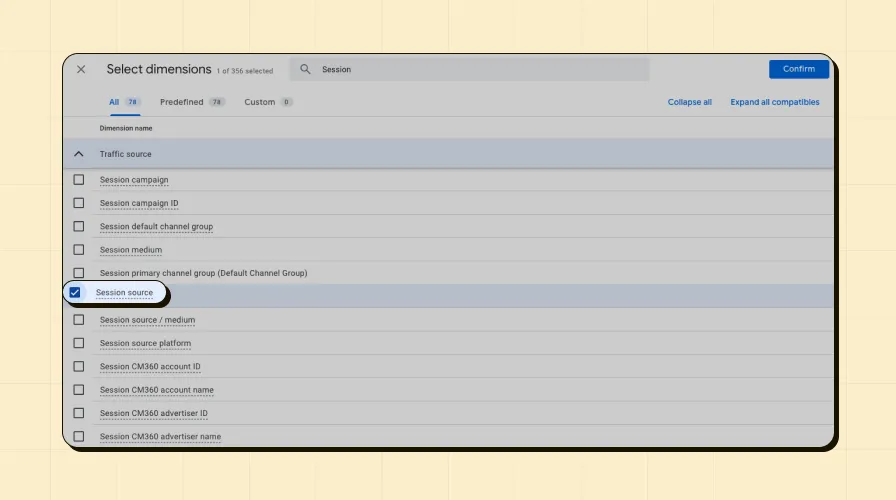
Step 3:Click the +icon next to Dimensions → Search for and add Session source
Step 4:Click the +icon next to Metrics → Add these:
Sessions
Active users
Engagement rate
Key events (if you track conversions)
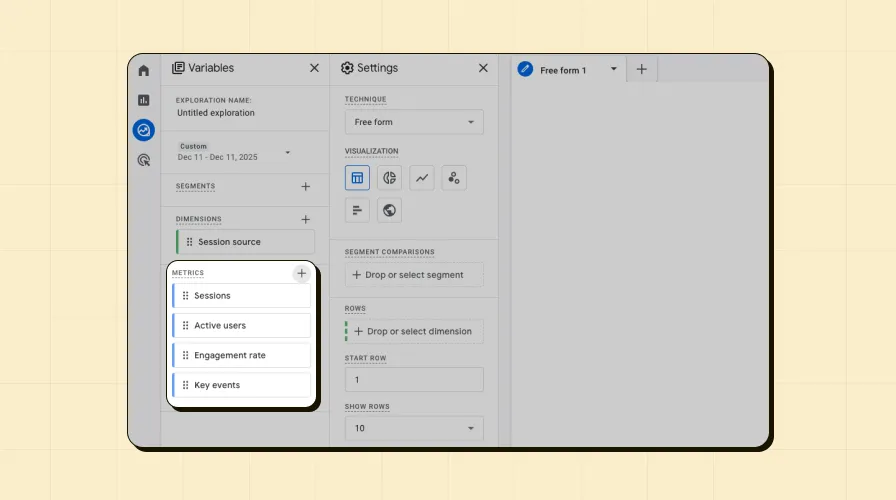
Step 5:Double-click the dimension and metrics to add them to your table
Step 6:In the visualization column on the right, click Add filter
Step 7:Select Session source→ matches regex→ Paste the regex pattern
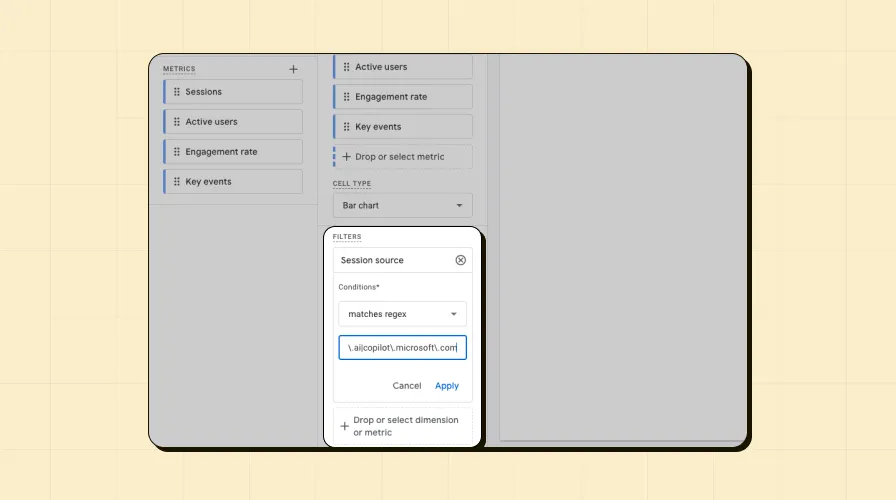
Step 8:Click Apply
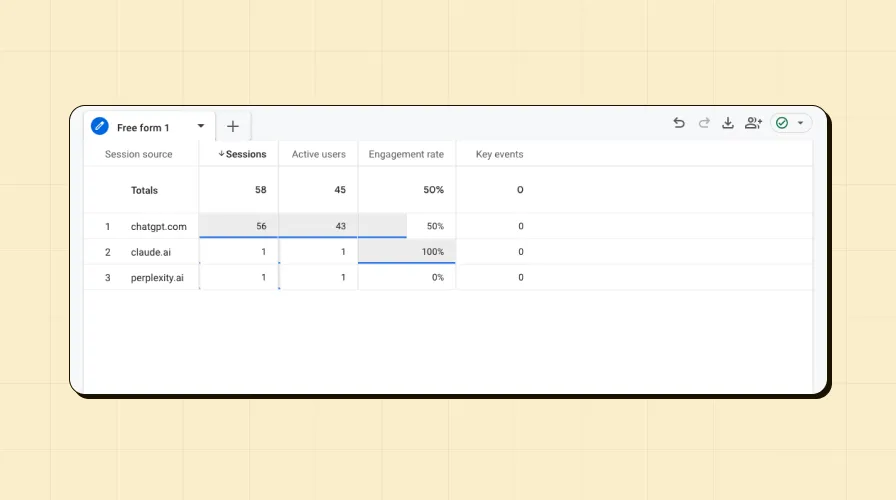
Your exploration now shows AI traffic broken down by platform, with custom metrics you selected.
Limitations
This method works great for quick checks, but keep these limitations in mind:
Filter resets when you leave the report
250 character limit means you can't include every AI platform
You'll need to reapply it every time
But it's fast, requires no permissions, and gets you answers immediately
If you find yourself applying this filter repeatedly, that's your signal to move to Method 2 or 3.
Method 2: Custom AI traffic report
This is the sweet spot for most teams. You'll create a permanent report that shows AI traffic from all platforms, visible to everyone with access to your GA4 property. Once set up, your team can check AI performance anytime without reapplying filters or remembering regex patterns.
When to use this method
You need regular AI traffic reporting
You want your team to access the data easily
You don't need channel-level comparisons yet
Recommended for most users
Requirements
You'll need Editor or Administrator permissions in GA4. If you don't have access, ask your GA4 admin to follow these steps.
Step-by-step setup
Step 1: Create the report
Navigate to Reports→ Library(bottom of the left sidebar)
Click Create new report→ Create detail report
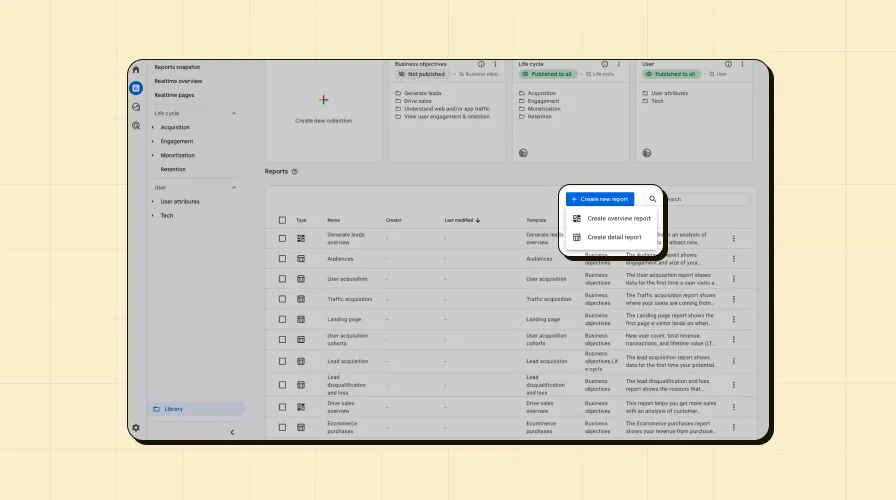
Select the Traffic acquisitiontemplate
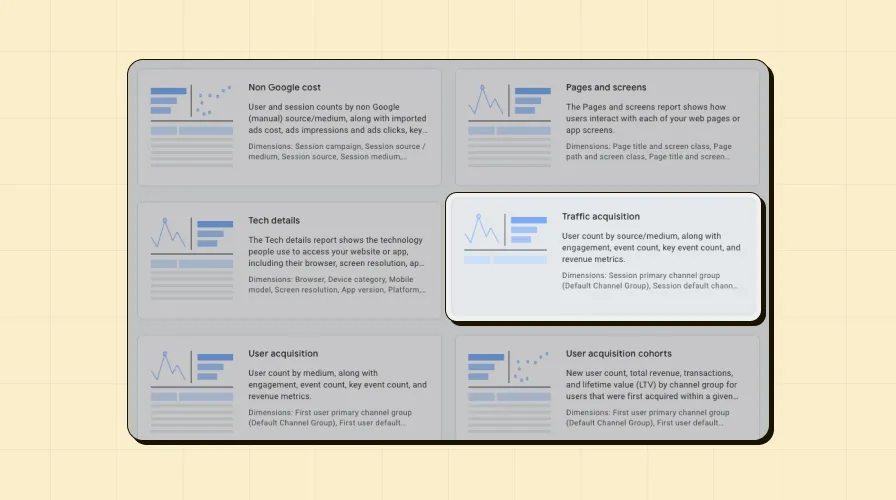
Name your report AI Traffic
Step 2: Configure dimensions
Click Dimensionson the right panel
Find Session sourceand check the box to make it the default dimension
Move it to the top of the dimension list by dragging
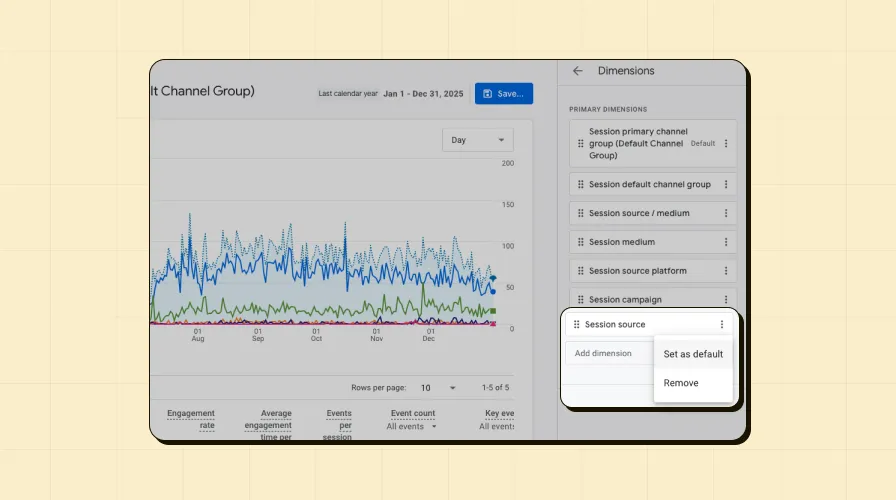
Click Apply
Step 3: Add the filter
Click Add filterat the top of the report editor
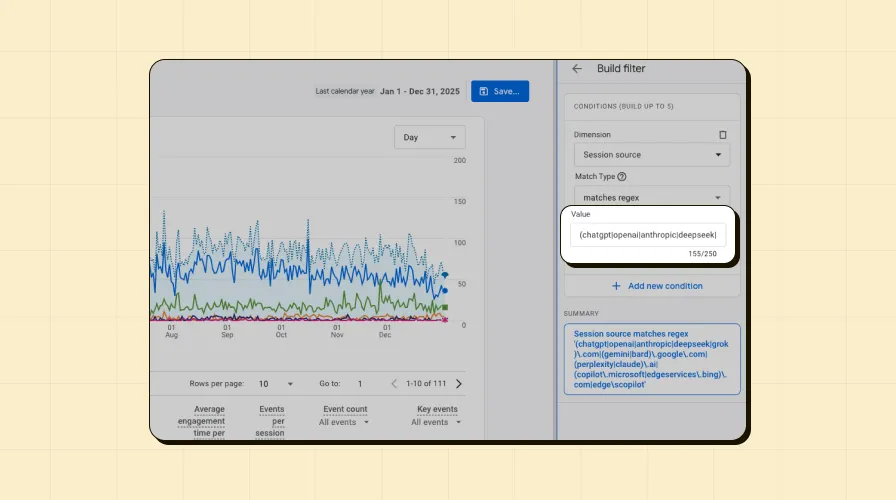
Search for and select Session source
Set match type to matches regex
Paste the full regex pattern:
(chatgpt|openai|anthropic|deepseek|grok)\.com|(gemini|bard)\.google\.com|(perplexity|claude)\.ai|(copilot\.microsoft|edgeservices\.bing)\.com|edge\scopilotClick Apply
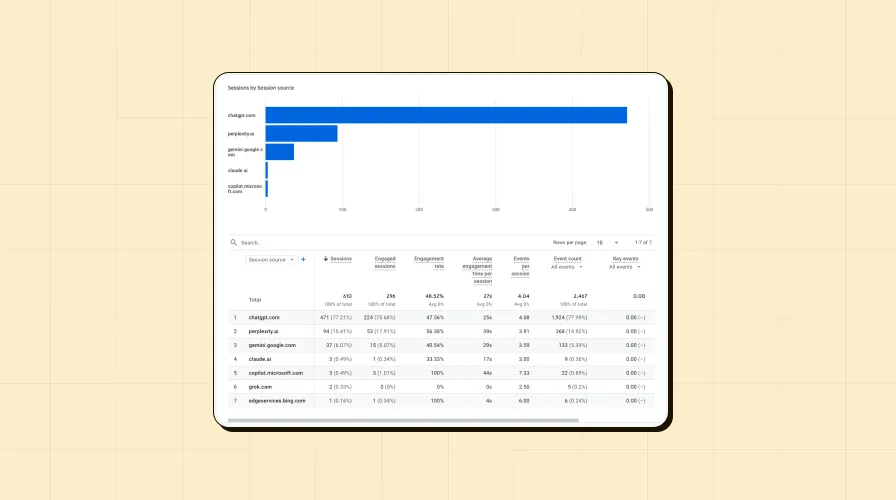
Step 4: Customize metrics (optional)
Review the default metrics like Sessions, Engaged sessions, and Engagement rate
Add or remove metrics based on what matters to your team:
Recommended additions: Key events, Average engagement time
Consider removing: Metrics that aren't relevant to your goals
Adjust chart displays if needed (keep line chart, remove bar chart if you prefer)
Step 5: Save and publish
Click Savein the top right
Choose Save as new report
Confirm the name is AI Traffic
Click Save
Step 6: Add to your sidebar
You're still in the Library view. Find the Life cyclecollection (or wherever your Acquisition reports live)
Click the ⋮(three dots) next to the collection → Edit collection
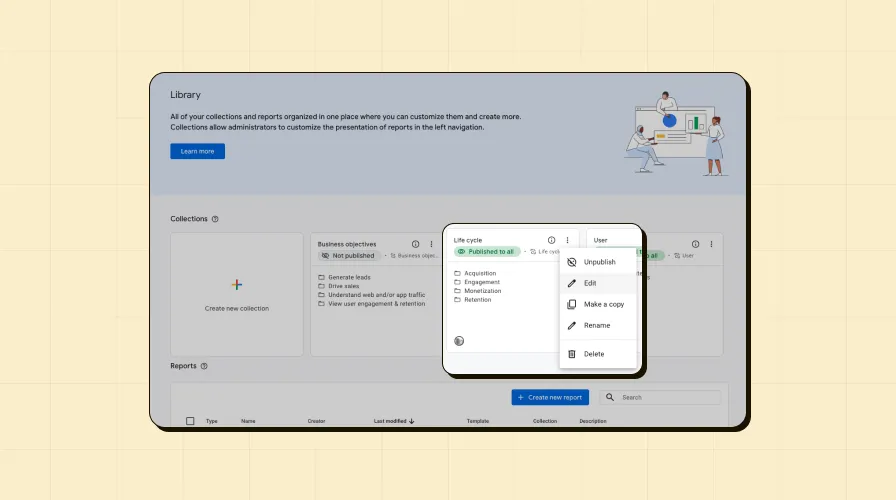
In the left panel, search for "AI Traffic"
Drag the AI Trafficreport under the Acquisitionsection
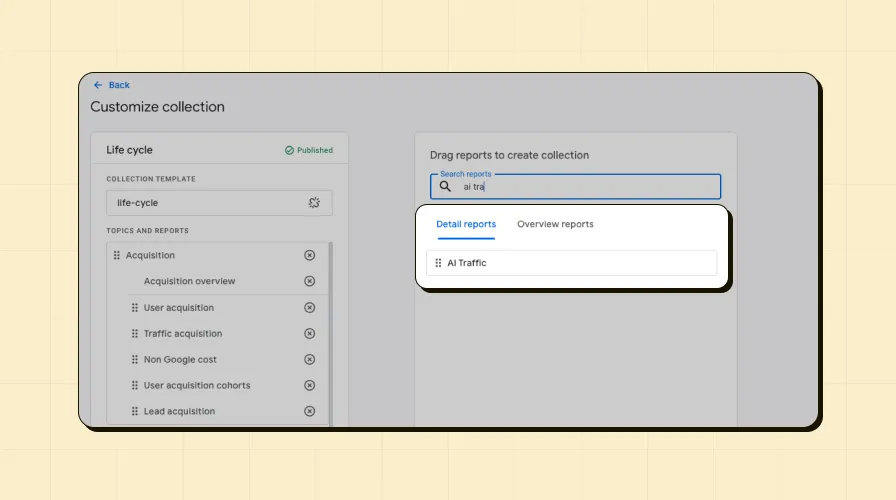
Click Save→ Save changes to current collection
Step 7: Access your report
Navigate to Reports→ Acquisition→ AI Traffic
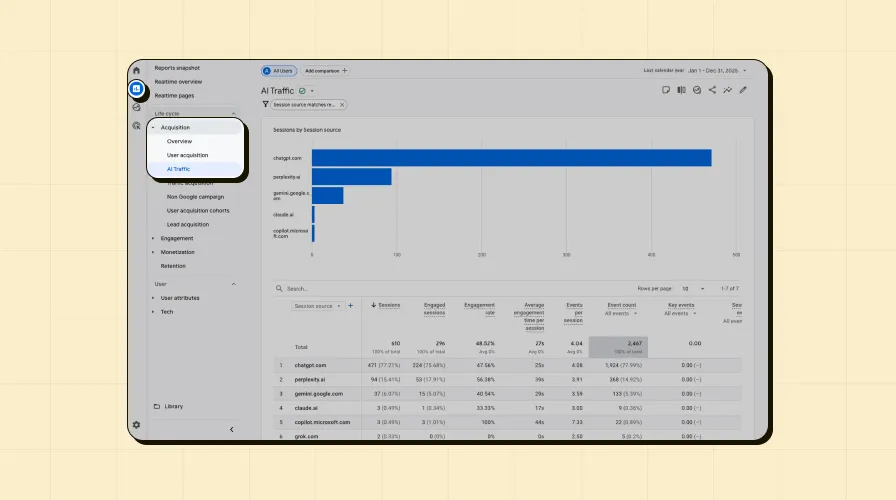
You'll see a breakdown of all AI platforms sending traffic, with sessions, users, engagement metrics, and conversions
What this report shows
All AI platforms driving traffic to your site
Sessions, active users, and engagement rate per platform
Time-based trends showing AI traffic growth
Which AI tool sends the most valuable visitors
Pro tips
Add Landing page as a secondary dimensionto see which pages attract AI users
Use date comparisonto track month-over-month AI traffic growth
Export to Google Sheetsfor stakeholder presentations
All users with GA4 accesscan now view this report once published
This report becomes your go-to resource for understanding AI traffic. But if you want to compare AI performance against Organic Search, Paid, and Social in the same view, that's where Method 3 comes in.
Method 3: Custom channel group
This is the most powerful approach. You'll create a custom channel group that places AI traffic alongside your other channels – Organic Search, Paid Search, Direct, Social, and Referral. Once configured, AI appears as its own channel automatically in every standard report.
When to use this method
You want top-level channel analysis (AI vs. Organic vs. Paid)
You're creating executive dashboards
You need AI data across all standard reports automatically
You want the most scalable, future-proof solution
Best for comprehensive, long-term reporting
Why this is the most powerful
No character limit (can include all AI platforms)
Automatically appears in all standard reports
Enables true channel-level comparisons
Update once, applies everywhere
Most professional approach for stakeholder reporting
Important limitation:GA4 allows only 2 custom channel groups maximum (1 slot is reserved for the default group). Use this strategically.
Requirements
You'll need Administrator permissionsin GA4. Editor access isn't enough for channel groups – only Admins can create or modify them.
Step-by-step setup
Step 1: Access channel groups
Navigate to Admin(gear icon in bottom left)
Under the Data displaysection, click Channel groups
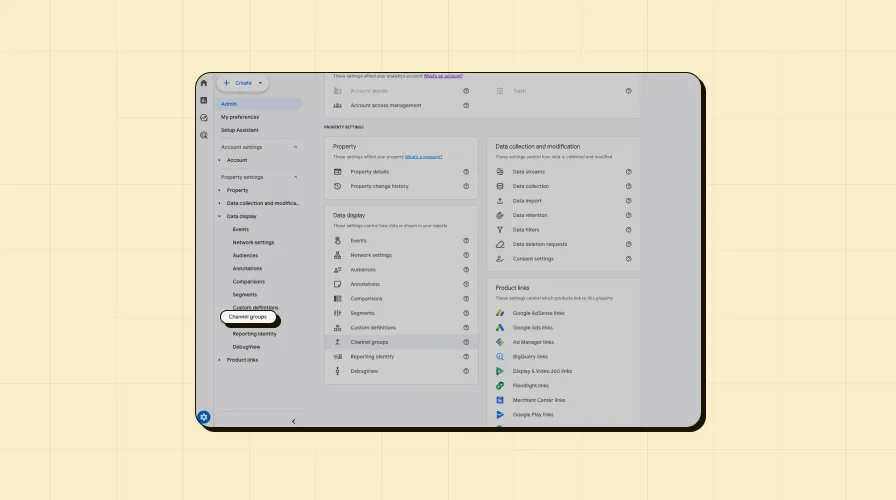
You'll see the Default channel groupthat GA4 uses automatically
Step 2: Copy the default channel group
Click the ⋮(three dots) next to Default channel group
Select Copy channel group
Name it: Default + AI traffic(or whatever makes sense for your team)
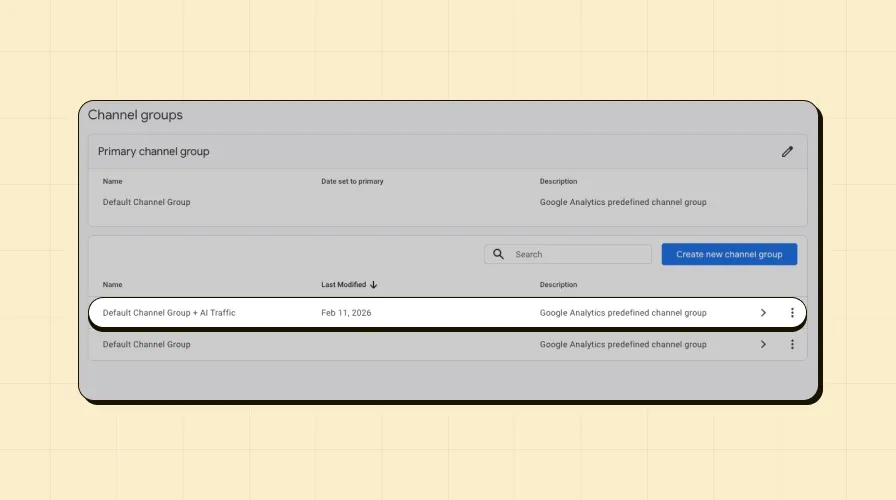
Click Save
Step 3: Create the AI channel
In your new channel group, click Add new channel
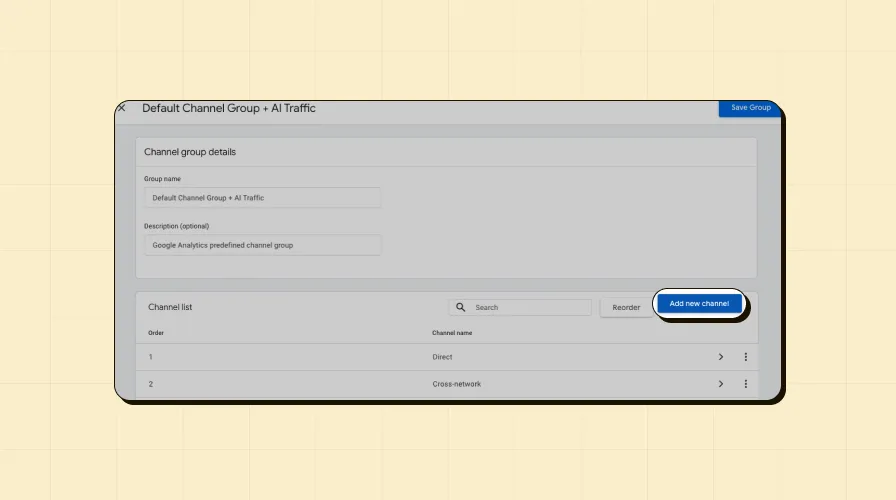
Channel name: Artificial intelligence
Why not just "AI"?When you search reports later, typing "AI" also matches "emAIl". Using the full name makes filtering more precise.
Step 4: Set channel conditions
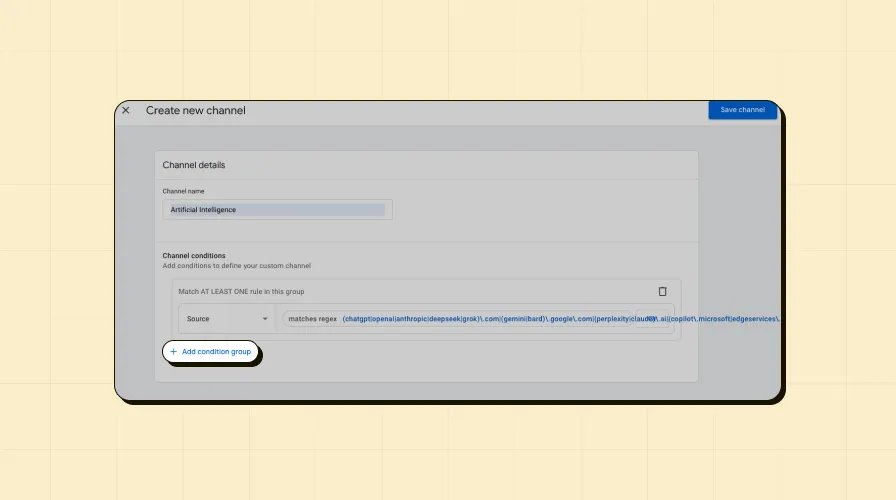
Click Add condition group
In the dropdown, select Source
Set match type to matches regex
Paste the full regex pattern:
(chatgpt|openai|anthropic|deepseek|grok)\.com|(gemini|bard)\.google\.com|(perplexity|claude)\.ai|(copilot\.microsoft|edgeservices\.bing)\.com|edge\scopilotClick Apply
Click Save channel
Step 5: Reorder channels(CRITICAL STEP)
Your new Artificial intelligencechannel is now at the bottom of the channel list
Click the Reorderbutton
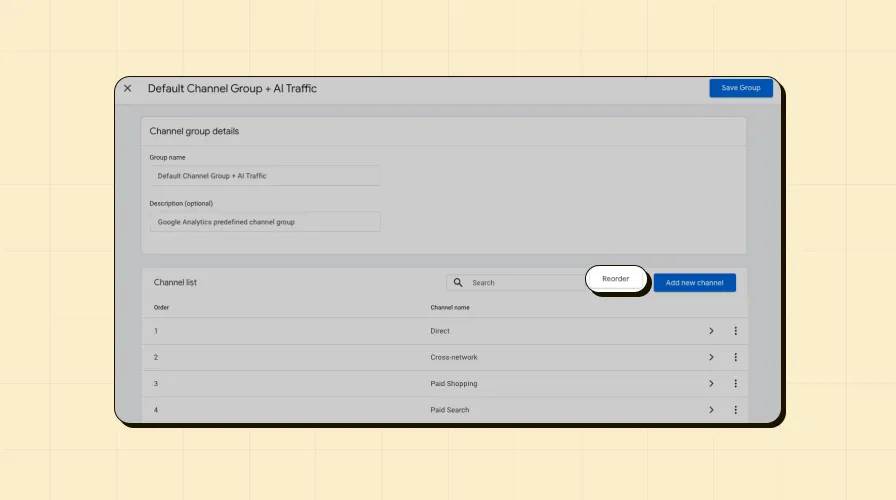
Drag Artificial intelligenceABOVE the Referralchannel
Why this matters:GA4 evaluates channels top-to-bottom. If Referral comes first, AI traffic gets classified as referral instead of AI. This is the most common mistake people make.
You can place it even higher if you want (some teams put it near the top for visibility), but it must be above Referral at minimum.
Click Apply
Step 6: Save the channel group
Click Savein the top right
Confirm by clicking Save group
Your custom channel group is now active, Refresh the browser tab once.
Step 7: Using your custom channel group
In traffic acquisition reports:
Navigate to Reports→ Acquisition→ Traffic acquisition
Click the dimension dropdown above the table
Instead of Session default channel group, select your custom channel group: Default + AI traffic

You'll now see all standard channels PLUS your Artificial intelligencechannel
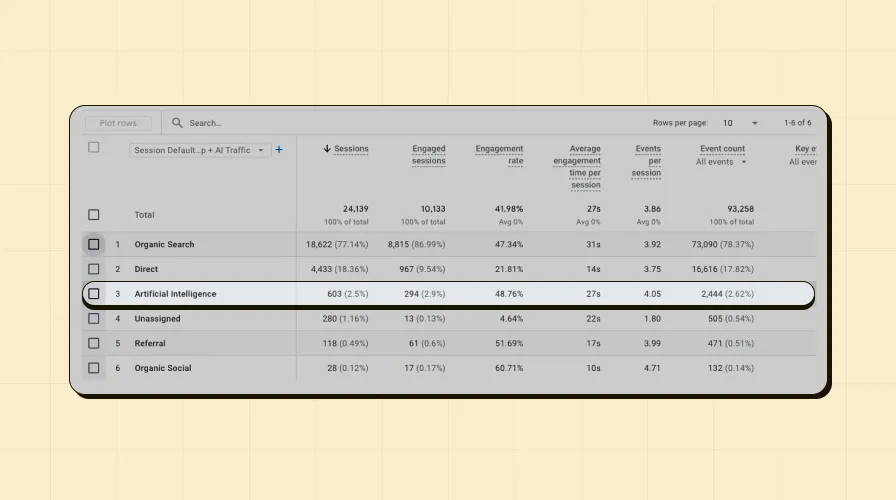
What you can analyze now
With AI as a standalone channel, you can answer questions that weren't possible before:
Channel performance comparison:
How does AI traffic engagement compare to Organic Search?
Do AI visitors convert better than Social traffic?
Is AI traffic growing faster than other channels?
Which channel has the highest average engagement time?
Strategic insights:
If AI converts at 3.2% and Social converts at 1.8%, shift content strategy
If AI engagement time is 40% higher than Referral, AI users find your content more valuable
If ChatGPT sends more traffic than Twitter, prioritize AI optimization
Example comparison:
Channel | Sessions | Engagement rate | Conversions | Conv. rate |
|---|---|---|---|---|
Organic Search | 10,245 | 68% | 234 | 2.3% |
Artificial intelligence | 487 | 72% | 18 | 3.7% |
Referral | 1,823 | 45% | 31 | 1.7% |
Social | 2,156 | 38% | 12 | 0.6% |
In this example, AI traffic has the highest engagement rate AND conversion rate, even though volume is lower. That's a signal to invest more in AI visibility.
Pro tips
This channel group now works in ALL standard reports automatically– no need to set up filters repeatedly
You can still create the dedicated AI Traffic report from Method 2for detailed platform breakdown (ChatGPT vs. Claude vs. Gemini)
Use channel groups for executive summaries, use Method 2 reports for operational analysis
Update the regex pattern here once, and it applies everywhere this channel group is used
Combining methods 2 and 3
The smartest approach? Use both:
Method 3 (Channel group)for high-level strategic analysis and stakeholder reports
Method 2 (Custom report)for operational insights about which specific AI platforms to optimize for
Together, they give you complete visibility into AI traffic at every level.
Troubleshooting common issues
Even with clear instructions, things don't always work perfectly the first time. Here are the most common issues people run into when tracking AI traffic in GA4 – and how to fix them.
Issue 1: "I don't see any AI traffic"
Possible causes:
Your site doesn't appear in AI results yet
Traffic volume is too low to register
Date range is too narrow
Regex pattern wasn't applied correctly
Channel group ordering is wrong
How to fix it:
Expand your date range to 30-90 days (AI traffic is still relatively small for most sites)
Manually check if AI platforms are in your referral traffic:
Go to Traffic Acquisition report
Set dimension to Session source
Search for "chatgpt" or "claude"
If you see them there, your regex or channel setup needs adjustment
Verify your regex pattern:
Check for typos or missing characters
Make sure you copied the full pattern
Confirm match type is "matches regex" not "equals" or "contains"
Test with a simplified pattern first:
Try just chatgpt\.com to see if the filter mechanism works
If that shows results, the issue is with your full pattern
Issue 2: "AI traffic still shows as referral"
This is the most common problem – and it's almost always a channel group ordering issue.
The cause:Your Artificial intelligence channel is below Referral in the channel group hierarchy
The fix:
Go to Admin→ Data display→ Channel groups
Open your custom channel group
Click Reorder
Drag Artificial intelligenceABOVE Referral
Click Apply→ Save
Wait 24-48 hours for GA4 to reprocess the data (historical data updates retroactively)
Issue 3: "Regex pattern not working"
Debugging checklist:
Check you copied the full pattern without truncation
Verify you're using "matches regex" as the match type (not "contains" or "equals")
Look for extra spaces before or after the pattern (remove them)
Confirm you're using the full version in channel groups (not the short version meant for filters)
Make sure the pattern is within the character limit if using filters (250 characters max)
Test approach:
Start with the simplest possible pattern: chatgpt\.com
If that works, your filter mechanism is fine
Add one platform at a time to identify where the pattern breaks: (chatgpt|claude)\.ai
Build up until you find the problematic part
Issue 4: "New AI platform not being tracked"
The cause:The platform's domain isn't in your regex pattern yet
How to add new platforms:
Identify the new platform's domain (check your referral traffic or test by clicking from the AI tool to your site)
Add it to your regex pattern using this format: |newplatform\.com
Update the pattern in all places you've used it:
Custom channel group conditions
Any saved report filters
Exploration filters
Example:
Before:
(chatgpt|openai)\.com|gemini\.google\.com After: (chatgpt|openai)\.com|gemini\.google\.com|newaitool\.comAfter:
(chatgpt|openai)\.com|gemini\.google\.com|newaitool\.comDocument the change for your team so everyone knows what's being tracked
Issue 5: "Custom report not showing in sidebar"
The fix:
Go to Reports→ Library
Find the collection where your report should appear
Click ⋮(three dots) → Edit collection
Search for your report name in the available reports panel
Drag it to the correct section
Click Save→ Save changes to current collection
Issue 6: "I don't have the right permissions"
What you need:
Method 1 (Quick filter):Any access level works
Method 2 (Custom report):Editor or Administrator
Method 3 (Channel group):Administrator only
Your options:
If you don't have permissions, ask your GA4 admin to implement Methods 2 or 3
Share this guide with them so they have clear instructions
Use Method 1 in the meantime for quick analysis
Still stuck?
If none of these solutions work:
Double-check you're in the correct GA4 property (not accidentally in a different one)
Verify your GA4 tracking code is installed correctly on your site
Test with a known AI referral (click from ChatGPT to your site and see if it registers within 24 hours)
Check GA4's real-time report to see if AI traffic appears there first
Final thoughts
AI tools are quickly becoming a legitimate discovery channel – similar to how Google Search and social media evolved over the past decade. Leaving that traffic buried in generic referrals makes it harder to understand what's driving your results and where to focus your optimization efforts.
The good news? You don't need new tools, tracking codes, or technical expertise to fix this. Everything you need is already inside Google Analytics 4.
The AI landscape is moving fast. Teams that can measure and optimize for AI visibility now have an advantage most competitors don't have yet. Start tracking today, and you'll have data-driven insights while others are still guessing.
Ready to track AI traffic in your GA4? If you need help building custom reports or dashboards, ReportDash can help you turn your GA4 data into automated, client-ready reports that showcase AI traffic performance alongside all your other marketing channels. With ReportDash's datastore, you can save all your GA4 data and create comprehensive reports without worrying about data sampling or retention limits.